Stop the Buffer: A Creator's Complete Playbook for Bitrate Mastery
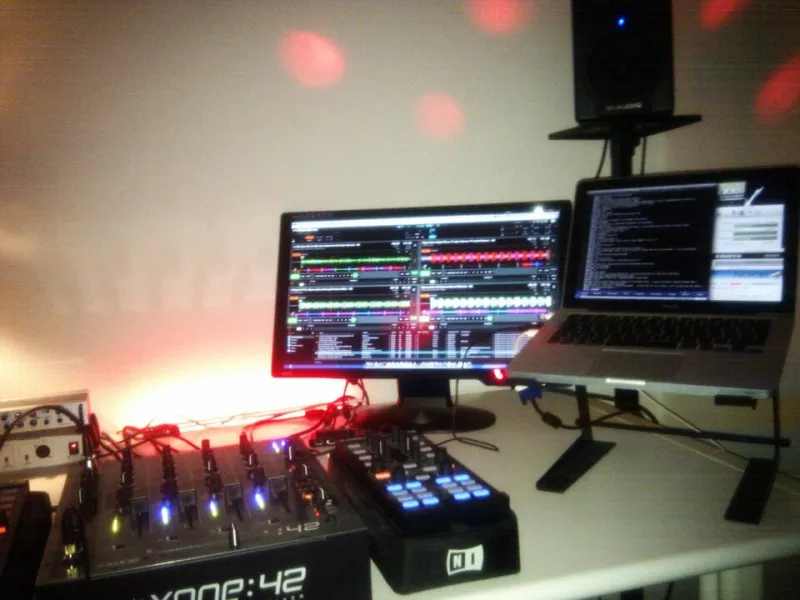
Photo: Remco Brink, CC BY-SA 2.0, via Wikimedia Commons
There's nothing more frustrating than watching your stream VOD back and seeing that dreaded spinning wheel right in the middle of your best moment. Your content was fire. Your setup was solid. But somewhere between your encoder and your viewer's screen, something broke down. More often than not, the culprit is bitrate — and getting it right is genuinely one of the highest-leverage skills a modern creator can develop.
At YourVideoHost, we work with creators at every level, and bitrate confusion is one of the most common technical pain points we see. So let's cut through the noise and give you a clear, practical framework for optimizing your stream quality across every major platform and device type.
What Bitrate Actually Is (And Why It's Not Just a Number)
Bitrate refers to the amount of data your stream transmits every second, typically measured in kilobits per second (Kbps) or megabits per second (Mbps). Think of it like a water pipe: the wider the pipe, the more data flows through, and the richer your video looks. But here's the catch — if your pipe is wider than your viewer's internet connection can handle, the water backs up. That's buffering.
Bitrate doesn't exist in isolation, either. It's locked in a three-way relationship with resolution and frame rate. Stream at 1080p60 with a bitrate meant for 720p30, and your video will look like a watercolor painting during fast motion. Crank the bitrate too high for your own upload speed, and you'll drop frames before the signal even leaves your house. The sweet spot is finding the combination where all three variables are in harmony — for you and your audience.
The Resolution-Frame Rate-Bitrate Triangle
Here's a practical breakdown of how these three elements interact:
- Resolution determines the pixel density of your image. Higher resolution requires more data to maintain visual clarity.
- Frame rate controls how many individual frames are displayed per second. Higher frame rates (like 60fps) significantly increase data requirements compared to 30fps.
- Bitrate is the budget you're working with. It has to cover both resolution and frame rate demands — or something suffers.
A common mistake new streamers make is jumping straight to 1080p60 because it sounds impressive, without realizing that doing it well requires a sustained upload bitrate of at least 6,000 Kbps — and that's on a good encoder. If your home internet upload tops out at 10 Mbps (pretty typical for a lot of US households on cable), you're already eating up more than half your available bandwidth before accounting for overhead.
Platform-Specific Benchmarks You Should Actually Use
Different platforms have different ingest capabilities, transcoding pipelines, and audience expectations. Here's what we recommend as starting points:
YouTube Live
YouTube has one of the most robust transcoding infrastructures in the game, which means it can repackage your stream into multiple quality tiers for viewers. That said, you still need to feed it a clean signal.
- 1080p60: 4,500–9,000 Kbps video, AAC audio at 128 Kbps
- 1080p30: 3,000–6,000 Kbps video
- 720p60: 2,250–6,000 Kbps video
- 720p30: 1,500–4,000 Kbps video
YouTube recommends H.264 encoding with a keyframe interval of 2 seconds. If you're using OBS or Streamlabs, set your encoder preset to "Quality" rather than "Speed" when your CPU can handle it.
Twitch
Twitch is the gold standard for gaming streams, but it's also the most restrictive in terms of bitrate caps — at least for non-partnered streamers.
- Twitch Partners: Up to 8,000 Kbps (though 6,000 Kbps is the widely recommended ceiling)
- Twitch Affiliates and regular streamers: Practically capped at 6,000 Kbps
- Recommended for most streamers: 3,500–5,000 Kbps at 1080p30 or 720p60
One thing worth noting: Twitch's transcoding (the ability to offer viewers lower quality options) isn't guaranteed for all channels. If you stream at 6,000 Kbps and your viewer is on a 5 Mbps connection, they might be stuck buffering. This makes it even more important to test your stream on multiple devices before going live to a big audience.
Facebook Gaming
Facebook Gaming tends to fly under the radar, but it has a surprisingly solid streaming infrastructure and a massive built-in audience — especially for casual and mobile gaming content.
- 1080p30: 4,000 Kbps recommended
- 720p30: 2,000–3,000 Kbps
- Maximum supported: 8,000 Kbps
- Audio: 128 Kbps AAC minimum; 320 Kbps for music-heavy streams
Facebook also supports RTMPS (secure RTMP), which is worth enabling if your streaming software supports it — it adds a layer of connection reliability that can reduce dropped frames during network hiccups.
How to Diagnose and Fix Buffering Issues
If your viewers are complaining about buffering, here's a quick diagnostic workflow:
- Run a speed test at fast.com or speedtest.net and check your upload speed. Your total stream bitrate should never exceed 70–80% of your sustained upload speed.
- Check your dropped frames in OBS or your streaming software. Anything above 1–2% is a red flag.
- Lower your bitrate in 500 Kbps increments until dropped frames stabilize.
- Switch to wired ethernet if you're on Wi-Fi. Wireless connections introduce jitter that can spike dropped frames even when average speeds look fine.
- Adjust your encoder preset — if you're on a lower-end CPU, use the "veryfast" or "superfast" preset in OBS to reduce encoding load.
Adaptive Bitrate: The Future-Proof Approach
One of the most powerful tools in modern streaming is adaptive bitrate (ABR) streaming, which dynamically adjusts quality based on a viewer's available bandwidth in real time. Platforms like YouTube Live and Facebook Gaming already handle this on the playback side, but if you're hosting your own content or using a video platform like YourVideoHost, configuring multiple quality renditions on the ingest side can dramatically improve the experience for viewers on slower connections.
For creators serious about their audience — especially those with viewers spread across different regions or device types — ABR isn't a luxury. It's a baseline expectation.
The Bottom Line
Bitrate optimization isn't glamorous, but it's the difference between an audience that stays and one that bounces after 30 seconds of buffering. Start with the platform benchmarks above, test on multiple devices, and don't be afraid to dial things back if your connection can't support your ideal settings. A smooth 720p stream will always outperform a choppy 1080p one — every single time.
Stream smarter, not just harder.